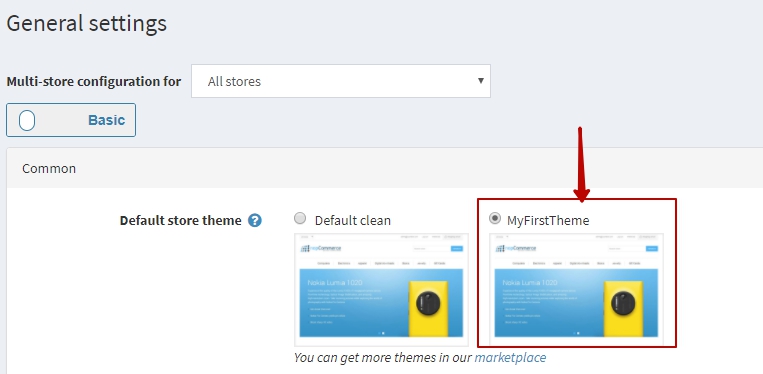
Creating / Writing your own theme (using current / default theme)
Open your nopCommerce solution or website (web version) in Visual Studio - Go to this location:
- If using source code:
\Nop.Web\Themes\ - If using web version:
\[Project Root]\Themes\
Select any default / current theme
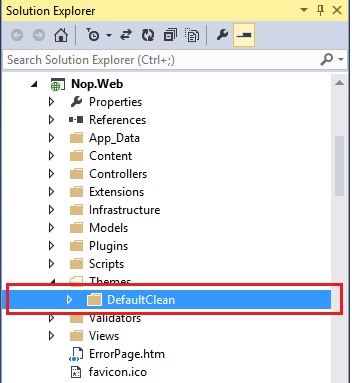
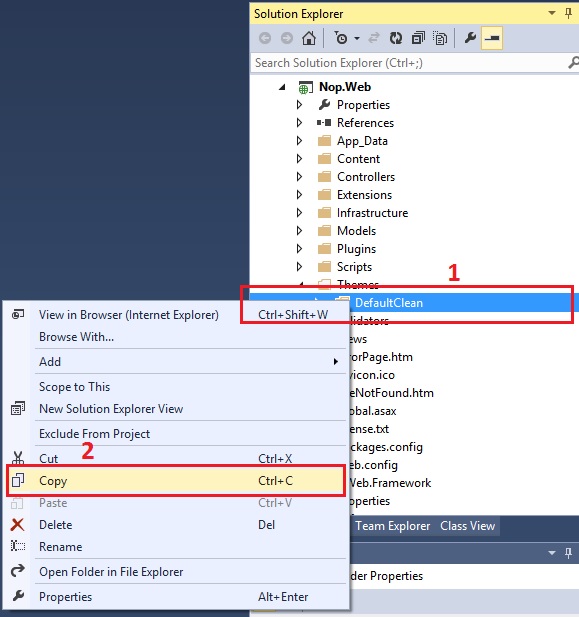
Now, Right click on the theme → select COPY
Now select "Theme" folder → right click → PASTE
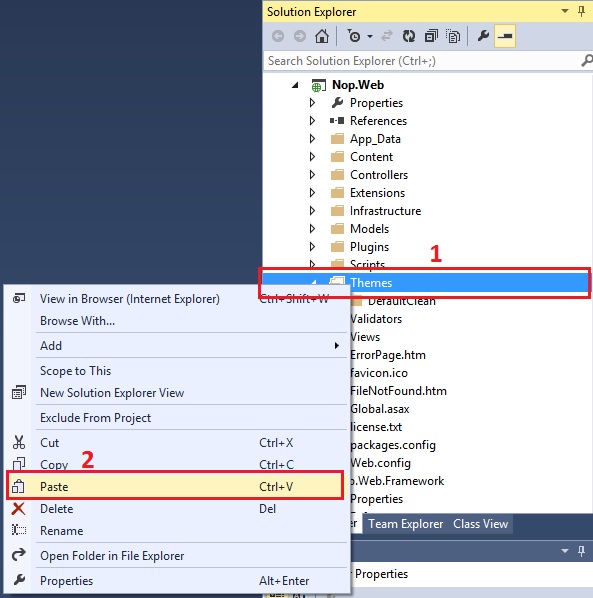
You will get something like "Copy of default/current theme"
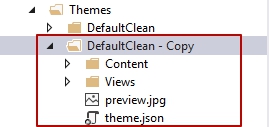
Rename it - whatever you like to be the name of your new theme – For an instance, let's say: MyFirstTheme
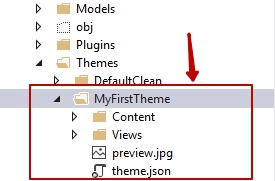
Now inside your New theme folder "MyFirstTheme" → open
theme.json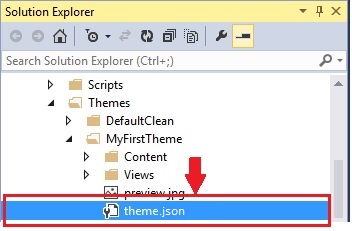
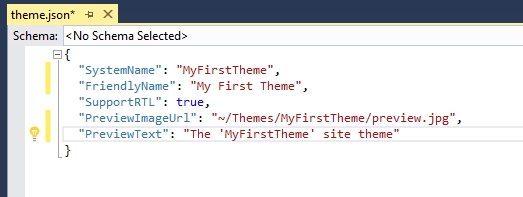
Change the current / existing theme name with your new theme name "MyFirstTheme"
Now, inside your new theme folder "MyFirstTheme" → Content → Images add your new images in "images" directory and start updating / customizing your
style.cssaccording to your requirements.If you would like to test the changes → Go to Admin section → Apply your new theme → Save change and preview your public store.