
Google analytics plugin
This section describes how to add and integrate Google analytics plugin in your store.
To configure the Google analytics plugin:
Go to Configuration → Widgets. The Widgets window is displayed:
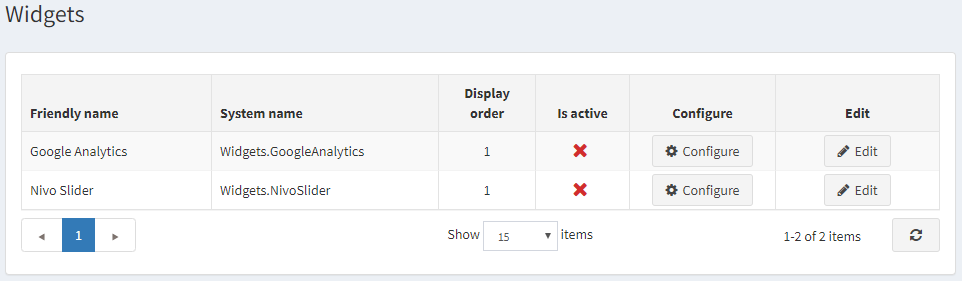
Activate the plugin
Click Edit beside the Google analytics. The window is expanded, as follows:
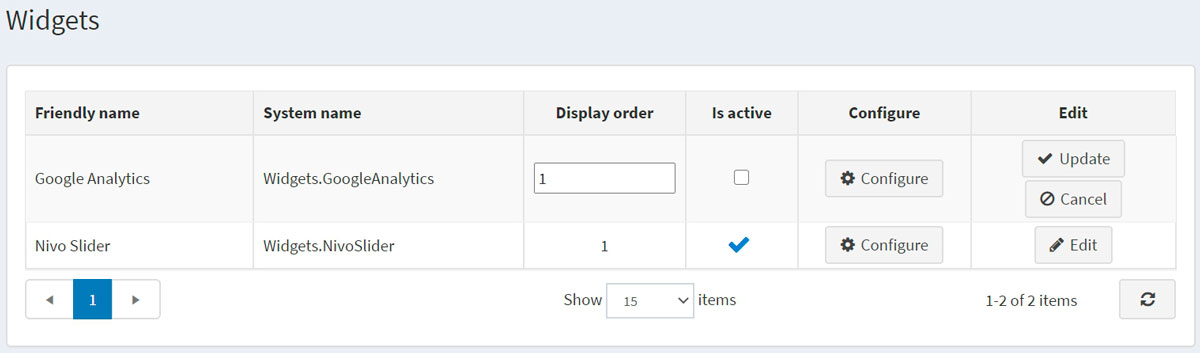
Select the Is active checkbox, to enable the Google analytics plugin. Than click the Update button to save the changes.
Configure the plugin
Click Configure beside the Google analytics. The Configure – Google analytics window is displayed, as follows:
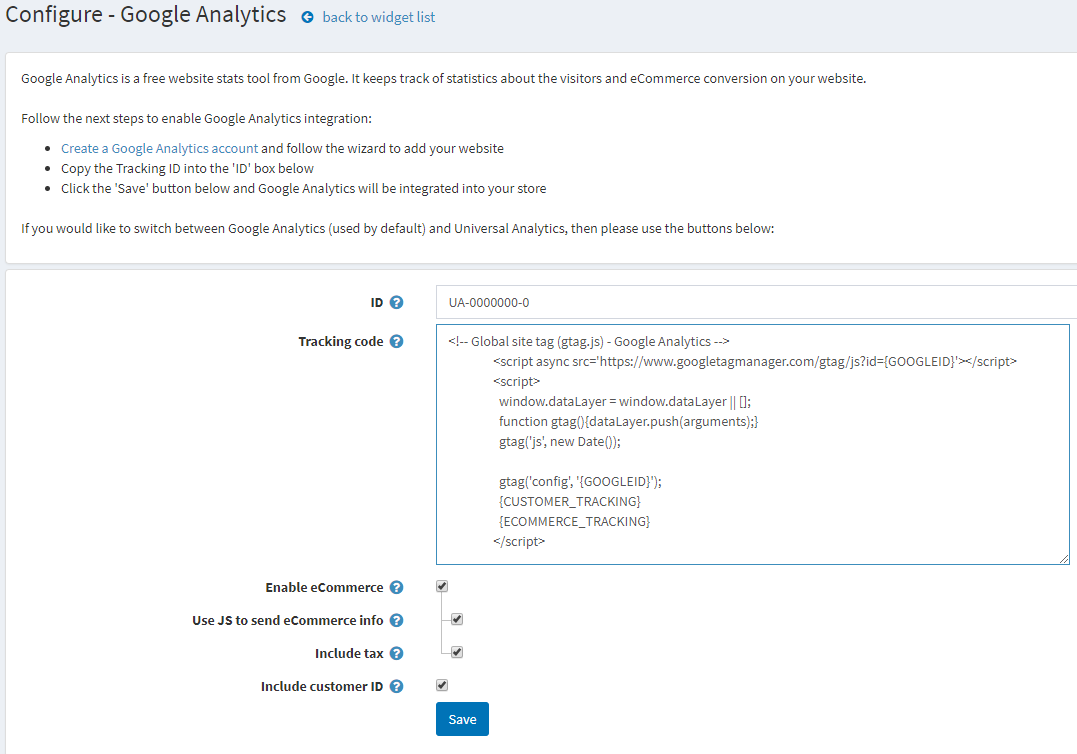
Perform the following steps to enable Google analytics integration:
- Create a Google analytics account at the following link http://www.google.com/analytics/ and follow the wizard to add your website
- Copy the Google analytics ID into the ID box on the form.
- Enter the Tracking code generated by Google analytics. {GOOGLEID} and {CUSTOMER_TRACKING} will be dynamically replaced.
- Tick the Enable eCommerce checkbox to pass information about orders to Google eCommerce feature. If ticked the folloeing fields will be displayed:
- Check Use JS to send eCommerce info to use JS code to send eCommerce info from the order completed page. But in case of redirection payment methods some customers may skip it. Otherwise, eCommerce information will be sent using HTTP request. Information is sent each time an order is paid but UTM is not supported in this mode.
- Check Include tax to include tax when generating tracking code for eCommerce part.
- Tick the Include customer ID checkbox to include customer identifier to script.
Click Save. Google analytics will be integrated into your store.