Avalara tax provider
Connect to AvaTax
After installing the AvaTax integration you need to configure the integration.
Note
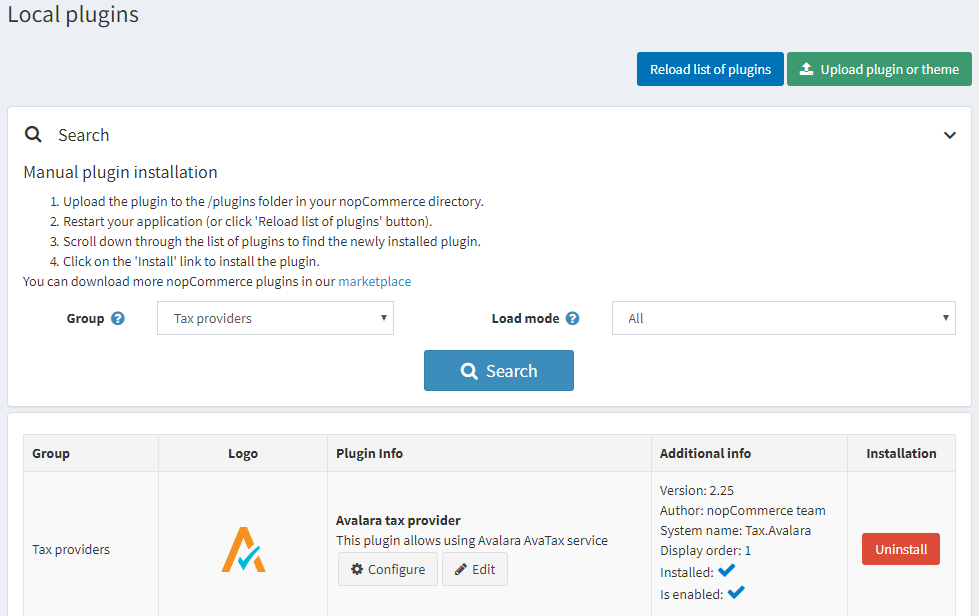
Be sure that the plugin is installed and checked as "Enabled" (Configuration → Local plugins). To enable the plugin click Edit and check Is enabled checkbox.
To configure Avalara tax provider go to Configuration → Tax providers.
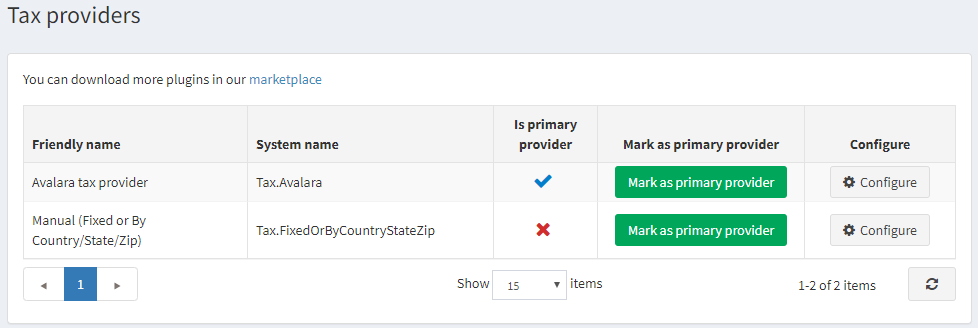
Click Mark as primary provider.
Click Configure beside the Avalara tax provider option in the list.
Follow the instructions on top of the page, each field's function is annotated when "?" is hovered on.
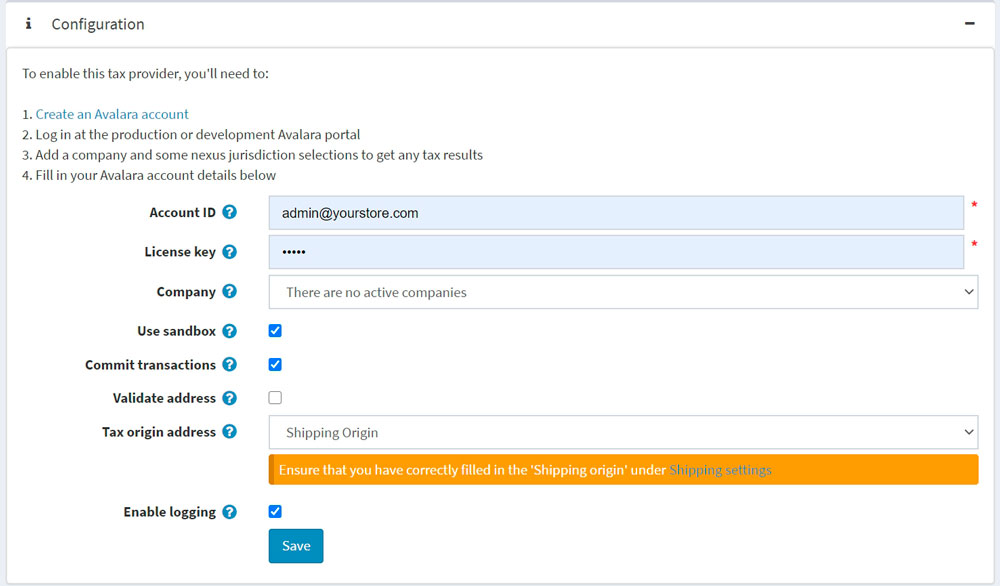
- Configure your Avalara Tax credentials:
- Account ID: provided during your AvaTax account activation process.
- License key: provided during your AvaTax account activation process.
- Company: company profile identifier in the AvaTax admin console.
- Use sandbox is enabled to commit test transaction.
- Commit transactions is enabled to commit transactions right after they are saved.
- Validate address is enabled to validate address entered.
- Tax origin address is used for tax requests to Avalara services.
- Enable logging enables logging of all requests to Avalara services.
- Save and click the Test connection button to perform test connection.
- To perform the test tax calculation fill the address form on the bottom of the page (please note, that nopCommerce Avalara tax plugin commits transactions to US addresses only) and click Test tax transaction.
Assign Avalara AvaTax code
Navigate to Configuration → Tax categories.
At the top right of the page you will see the branded Avalara tax codes button. Clicking it the drop-down menu will show the following menu:
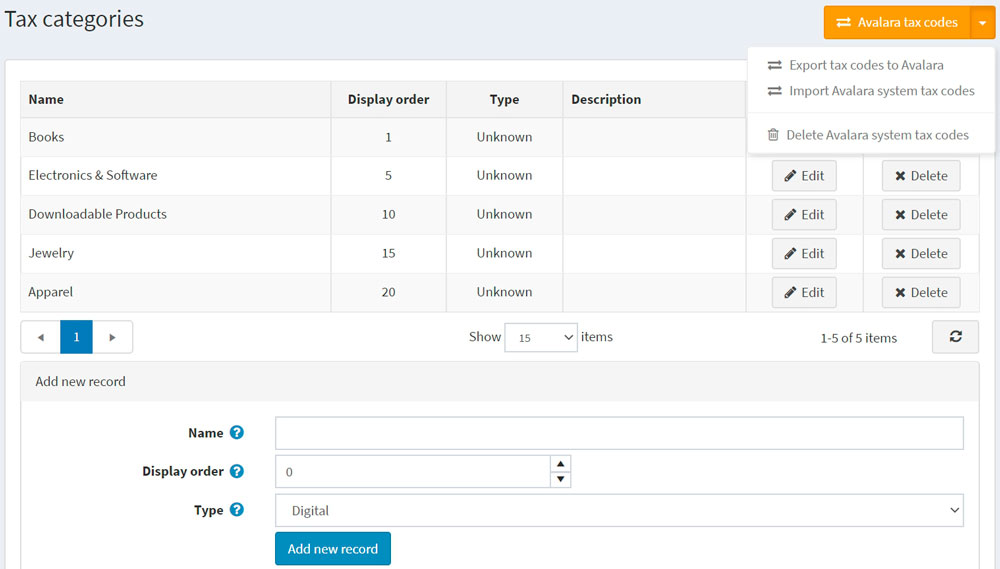
- Export tax codes to Avalara – exports all codes from your store to your Avalara backend.
- Import Avalara system tax codes – imports all Avalara tax codes from Avalara.
- Delete Avalara system tax codes – deletes all codes exported from Avalara.
Assign an Avalara tax exempt category to a customer
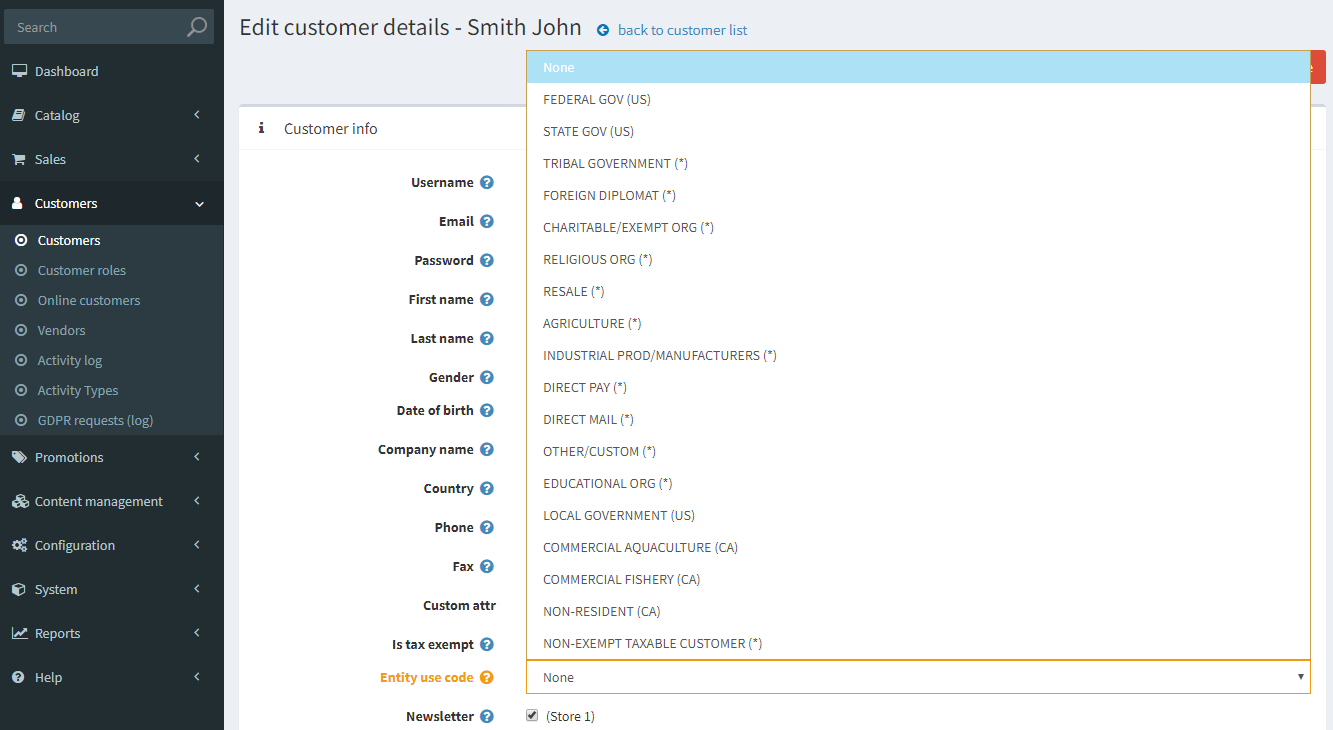
Click Customers → Customers → Edit customer
Find the highlighted Entity use code field and select the field, select the appropriate customer type code.
Click Save
Note
It is not necessary to check Tax exempt checkbox: assigning Entity use code is enough.
Assign an AvaTax system tax code to an item
Go to Catalog → Products.
Select a product to open the product details screen and click Edit.
On the product details screen, in Price panel assign appropriate code from drop-down list in Tax category field.
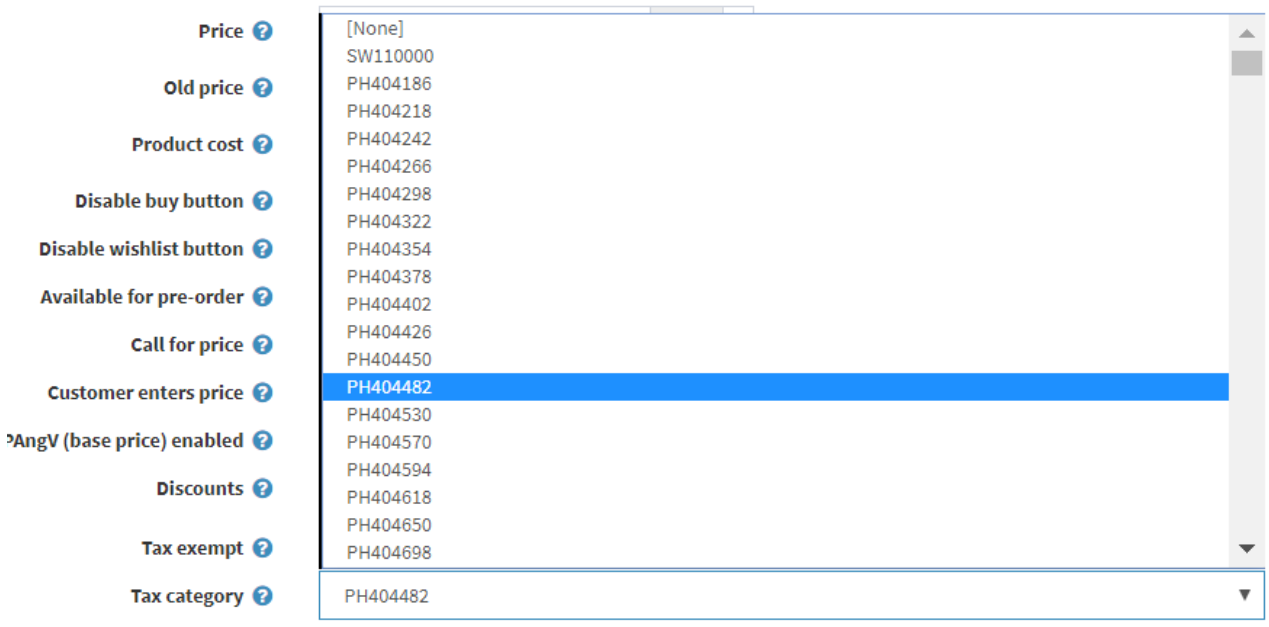
IMPORTANT: Ensure that SKU is entered, for better navigation in Avalara backend.
Click Save.
To see a listing of all available AvaTax system tax codes, visit http://taxcode.avatax.avalara.com.
Validate a customer address
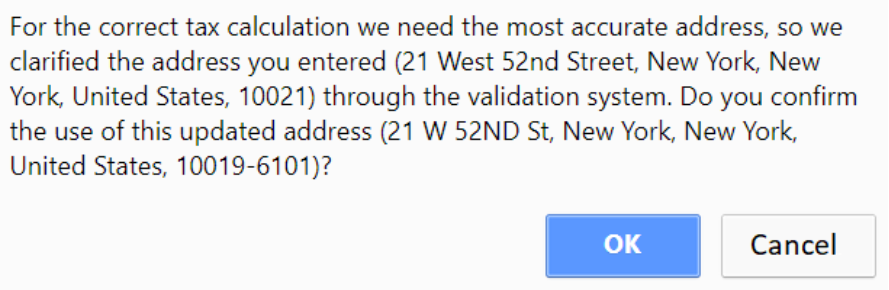
Ensure Validate address checkbox is on, in that case the address will be validated automatically.
User will see the following screen: