
Manual (fixed or by country/state/zip)
To configure the Manual (fixed or by country/state/zip) tax provider go to Configuration → Tax providers.
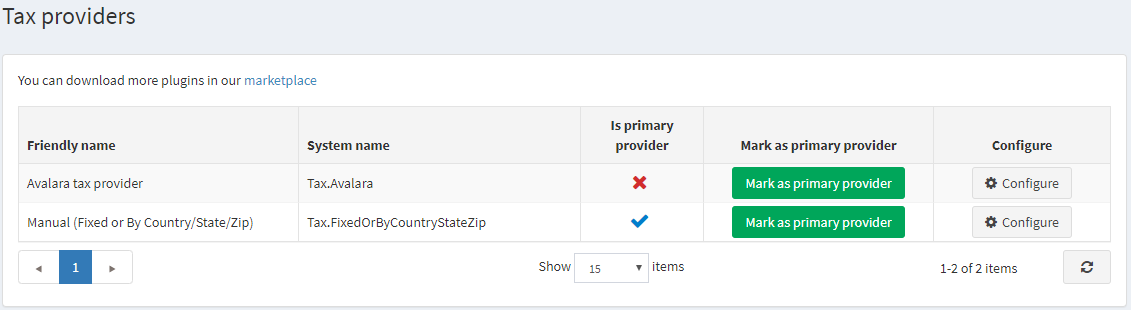
Click Configure in the Manual (fixed or by country/state/zip) provider line to edit tax rates. You can switch Fixed rate tax calculation to Country/state/zip tax calculation by clicking button at the top of the page.
Fixed rate
Choose Fixed rate configuration using the switcher in the top of the page.
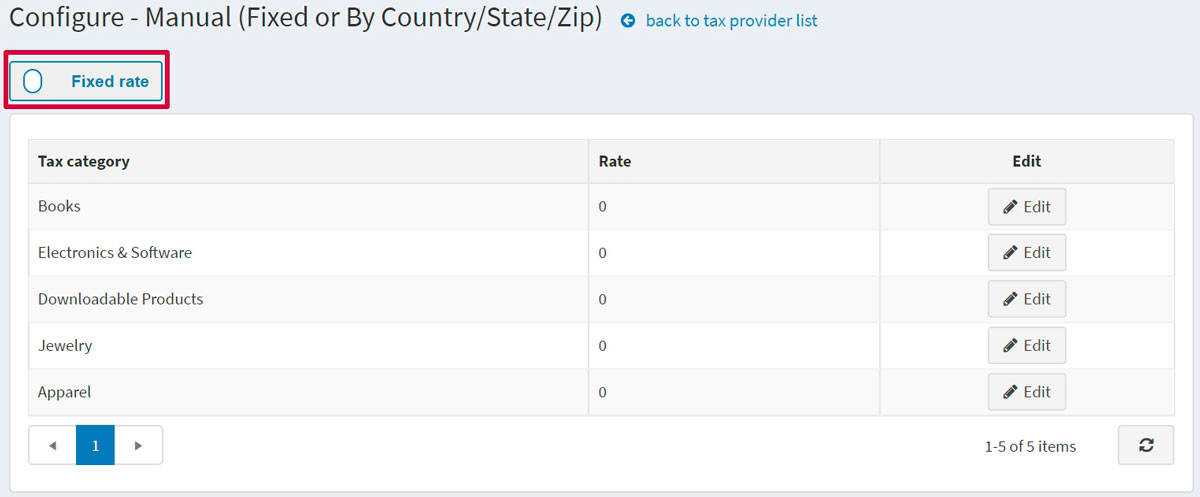
On this page you can see the pre-created tax categories. Click Edit beside each category and enter the percentage rates. Then click the Update button.
Make sure your products have a tax category assigned to them on their product pages.

Note
This section shows only pre-created tax categories. Read how to create new categories below: configure tax categories.
By country
Choose By country configuration using the switcher in the top of the page.
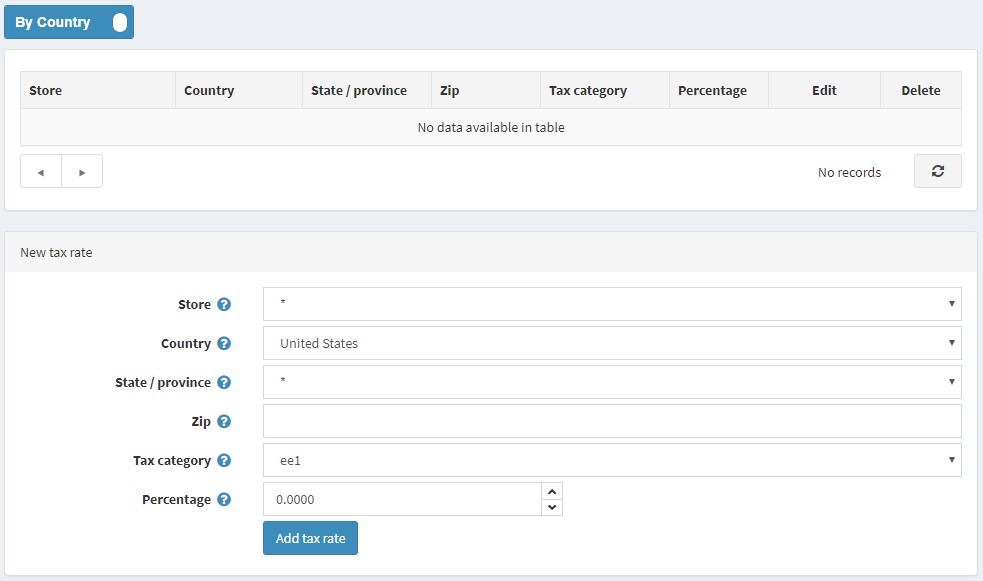
Define the new tax rate, as follows:
- Select the Store for which the rate is defined. Select an * to apply this rate to all stores.
- Select the Country for which the tax rate is defined.
- Select the State/province for which the tax rate is defined. If an asterisk (*) is selected, this tax rate will apply to all customers from the selected country regardless of the state.
- Enter Zip code of an area for which the tax rate is defined. If this field is empty, then this tax rate will apply to all customers from the selected country or state regardless of the zip code.
- Select the Tax category for which to apply the tax rate.
- In the Percentage field, enter the required percentage.
Click Add tax rate. The new tax rate is displayed, as follows:

Note
This section shows only pre-created tax categories. Read how to create new categories below: configure tax categories.
Configure tax categories
To define tax categories go to Configuration → Tax categories. The Tax categories window is displayed:
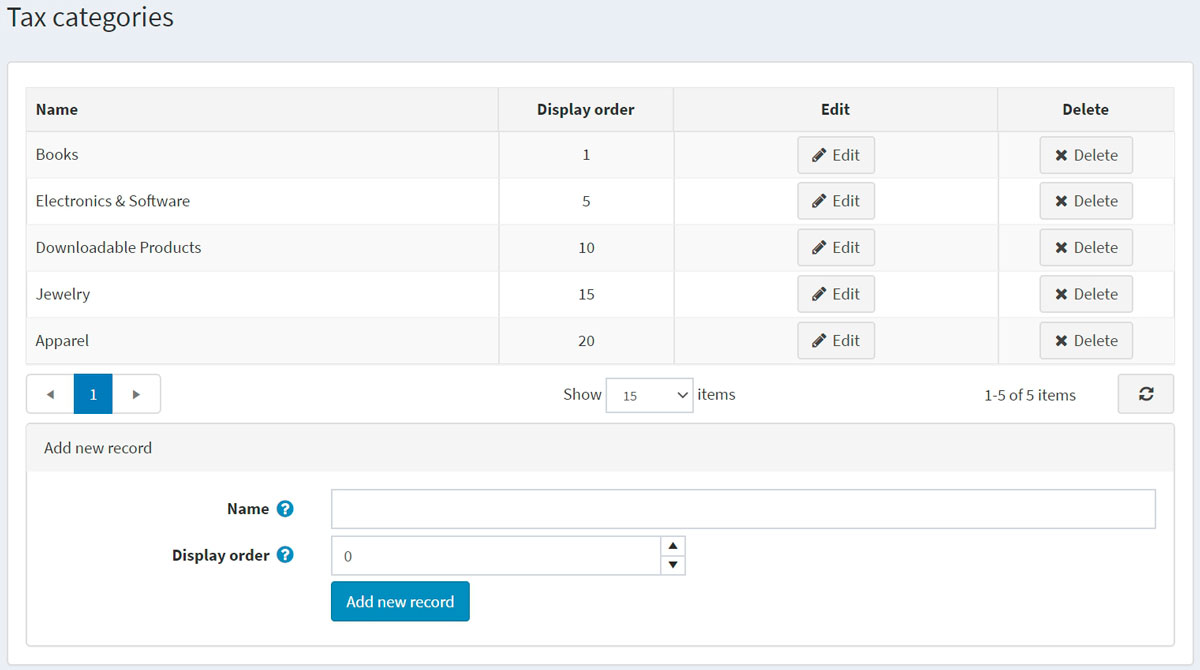
To add a new tax category, enter the category Name, and the Display order of this tax classification in the bottom of the panel. In the Display order field, value of 1 represents the top of the list. Then click Add new record to save the new tax category.