
Import/export products
nopCommerce supports importing from Excel format and exporting products in XML or Excel. You can download products from your catalog in PDF. You can find these options in Catalog → Products at the main page top left.
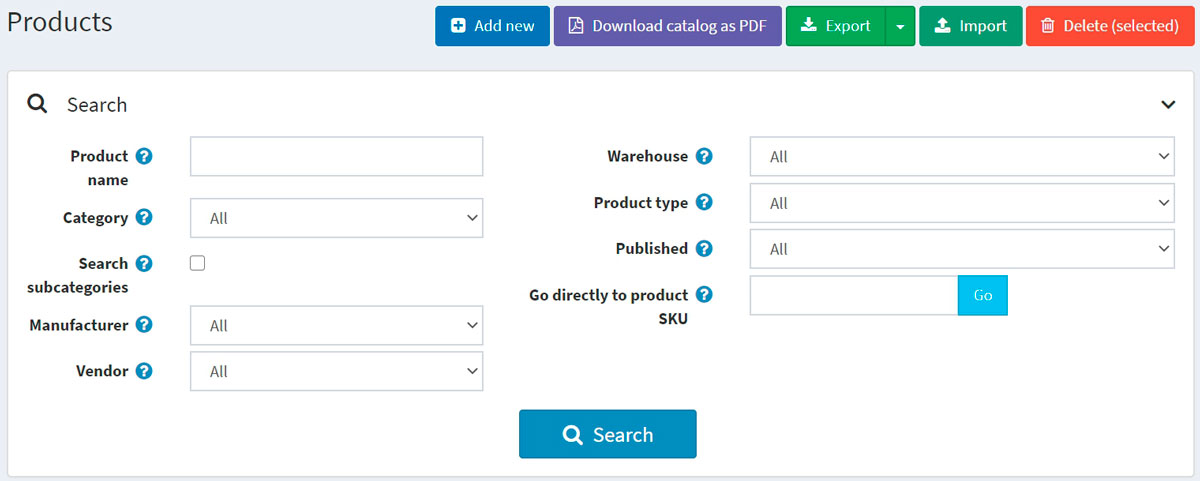
Exporting products
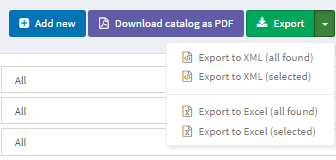
You can export products in XML or Excel formats by clicking the Export button. After clicking the Export button you will see the dropdown menu enabling you to Export to XML (all found) or Export to XML (selected) and Export to Excel (all found) or Export to Excel (selected).
If you don't need to download all the products use the Search panel to find the required products or/and use checkboxes to select the needed products. A file with products you have chosen will be downloaded. The file consists of all the products characteristics from product editing page panels (Product info, SEO, Pictures and so on).
Note
If you use product attributes, an exported Excel table will be grouped by rows. To view attribute details click + next to your product in the table.

Importing products
If you do not want to add all the products to your catalog manually you can use the import option.
Note
Before you start import you should download a table template for import in Excel format as it was described in the exporting products section. For accurate and correct import of your products it's crucial to name all the columns in the table properly (exactly as in the downloaded table).
It is not mandatory to fill all the table fields. The product will be created based on the filled fields.
Imported products are distinguished by SKU. If the SKU already exists, then its corresponding product will be updated.
Import requires a lot of memory resources. That's why it's not recommended to import more than 500 - 1000 records at once. If you have more records, it's better to split them into multiple Excel files and import separately.
Example
For example, we want to add Dancing shoes to our catalog. Let's create a new row in the table:

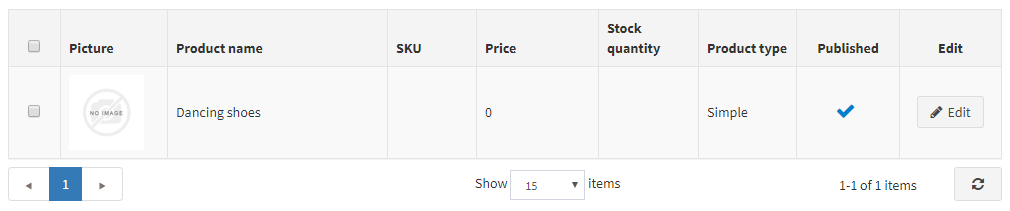
Then click Import, choose the file and click the Import from Excel button. Then check if you have a new product in the catalog.
Setting up import/export
The following section describes import/export settings: Export/import.